Introduction
This article does an overview of state management techniques in
ASP.NET. I will be discussing about the various types of state
management techniques
both client side and server side.
Let us see with a simple example how to use a hidden field. These examples increase a value by 1 on every "No Action Button" click. The source of the hidden field control is.

View State provides page level state management i.e., as long as the user is on the current page, state is available and the user redirects to the next page and the current page state is lost. View State can store any type of data because it is object type but it is preferable not to store a complex type of data due to the need for serialization and deserilization on each post back. View state is enabled by default for all server side controls of ASP.NET with a property
Let us see how ViewState is used with the help of the following example. In the example we try to save the number of postbacks on button click.
A cookie is a small file that stores user information. Whenever a user makes a request for a page the first time, the server creates a cookie and sends it to the client along with the requested page and the client browser receives that cookie and stores it on the client machine either permanently or temporarily (persistent or non persistence). The next time the user makes a request for the same site, either the same or another page, the browser checks the existence of the cookie for that site in the folder. If the cookie exists it sends a request with the same cookie, else that request is treated as a new request.
Let us see how to create persistence cookies. There are two ways, the first one is:
Let us see how to create a non persistence cookies. There are two ways, the first one is:

Limitation of cookies: The number of cookies allowed is limited and varies according to the browser. Most browsers allow 20 cookies per server in a client's hard disk folder and the size of a cookie is not more than 4096 bytes or 4 KB of data that also includes name and value data.
How to use control state property: Control state implementation is simple. First override the
How to get and set value in Session:

Session_Start: The
There are four session storage mechanisms provided by ASP.NET:
How to get and set a value in the application object:
So we have talked about various types of state management techniques in this article. I have tried to touch several topics in this article but the main intention for this article was to get the user familiar with the various state management techniques that exist in ASP.NET. The details for all these techniques will make a complete article by itself which I will try to post in future.
Background
State management means to preserve state of a control, web page, object/data, and user in the application explicitly because all ASP.NET web applications are stateless, i.e., by default, for each page posted to the server, the state of controls is lost. Nowadays all web apps demand a high level of state management from control to application level.Using the code
Types of state management
There are two types of state management techniques: client side and server side.Client side
- Hidden Field
- View State
- Cookies
- Control State
- Query Strings
Server side
- Session
- Application
Levels of state management
- Control level: In ASP.NET, by default controls provide state management automatically.
- Variable or object level: In ASP.NET, member variables at page level are stateless and thus we need to maintain state explicitly.
- Single or multiple page level: State management at single as well as multiple page level i.e., managing state between page requests.
- User level: State should be preserved as long as a user is running the application.
- Application level: State available for complete application irrespective of the user, i.e., should be available to all users.
- Application to application level: State management between or among two or more applications.
Client side methods
1. Hidden field
Hidden field is a control provided by ASP.NET which is used to store small amounts of data on the client. It store one value for the variable and it is a preferable way when a variable's value is changed frequently. Hidden field control is not rendered to the client (browser) and it is invisible on the browser. A hidden field travels with every request like a standard control’s value.Let us see with a simple example how to use a hidden field. These examples increase a value by 1 on every "No Action Button" click. The source of the hidden field control is.
<asp:HiddenField ID="HiddenField1" runat="server" />
In the code-behind page: protected void Page_Load(object sender, EventArgs e)
{
if (HiddenField1.Value != null)
{
int val= Convert.ToInt32(HiddenField1.Value) + 1;
HiddenField1.Value = val.ToString();
Label1.Text = val.ToString();
}
}
protected void Button1_Click(object sender, EventArgs e)
{
//this is No Action Button Click
}
2. View state
View state is another client side state management mechanism provided by ASP.NET to store user's data, i.e., sometimes the user needs to preserve data temporarily after a post back, then the view state is the preferred way for doing it. It stores data in the generated HTML using hidden field not on the server.View State provides page level state management i.e., as long as the user is on the current page, state is available and the user redirects to the next page and the current page state is lost. View State can store any type of data because it is object type but it is preferable not to store a complex type of data due to the need for serialization and deserilization on each post back. View state is enabled by default for all server side controls of ASP.NET with a property
EnableviewState set to true.Let us see how ViewState is used with the help of the following example. In the example we try to save the number of postbacks on button click.
protected void Page_Load(object sender, EventArgs e)
{
    if (IsPostBack)
    {
        if (ViewState["count"] != null)
        {
            int ViewstateVal = Convert.ToInt32(ViewState["count"]) + 1;
            Label1.Text = ViewstateVal.ToString();
            ViewState["count"]=ViewstateVal.ToString();
        }
        else
        {
            ViewState["count"] = "1";
        }
    }
}
protected void Button1_Click(object sender, EventArgs e)
{
       Label1.Text=ViewState["count"].ToString();
}
3. Cookies
Cookie is a small text file which is created by the client's browser and also stored on the client hard disk by the browser. It does not use server memory. Generally a cookie is used to identify users.A cookie is a small file that stores user information. Whenever a user makes a request for a page the first time, the server creates a cookie and sends it to the client along with the requested page and the client browser receives that cookie and stores it on the client machine either permanently or temporarily (persistent or non persistence). The next time the user makes a request for the same site, either the same or another page, the browser checks the existence of the cookie for that site in the folder. If the cookie exists it sends a request with the same cookie, else that request is treated as a new request.
Types of Cookies
1. Persistence Cookie: Cookies which you can set an expiry date time are called persistence cookies. Persistence cookies are permanently stored till the time you set.Let us see how to create persistence cookies. There are two ways, the first one is:
Response.Cookies["nameWithPCookies"].Value = "This is A Persistance Cookie";
Response.Cookies["nameWithPCookies"].Expires = DateTime.Now.AddSeconds(10);
And the second one is: HttpCookie aCookieValPer = new HttpCookie("Persistance");
aCookieValPer.Value = "This is A Persistance Cookie";
aCookieValPer.Expires = DateTime.Now.AddSeconds(10);
Response.Cookies.Add(aCookieValPer);
2. Non-Persistence Cookie: Non persistence cookies are not permanently stored on
the user client hard disk folder. It maintains user information as long
as the user accesses the same browser. When user closes the browser the cookie will
be discarded. Non Persistence cookies are useful for public computers.Let us see how to create a non persistence cookies. There are two ways, the first one is:
Response.Cookies["nameWithNPCookies"].Value = "This is A Non Persistance Cookie";
And the second way is: HttpCookie aCookieValNonPer = new HttpCookie("NonPersistance");
aCookieValNonPer.Value = "This is A Non Persistance Cookie;
Response.Cookies.Add(aCookieValNonPer);how to create cookie :
How to read a cookie: if (Request.Cookies["NonPersistance"] != null)
Label2.Text = Request.Cookies["NonPersistance"].Value;
Let's understand persistence and non persistence cookies more clearly with a diagram:
Limitation of cookies: The number of cookies allowed is limited and varies according to the browser. Most browsers allow 20 cookies per server in a client's hard disk folder and the size of a cookie is not more than 4096 bytes or 4 KB of data that also includes name and value data.
4. Control State
Control State is another client side state management technique. Whenever we develop a custom control and want to preserve some information, we can use view state but suppose view state is disabled explicitly by the user, the control will not work as expected. For expected results for the control we have to use Control State property. Control state is separate from view state.How to use control state property: Control state implementation is simple. First override the
OnInit() method
of the control and add a call for the Page.RegisterRequiresControlState() method with the instance of the control to register.
Then override LoadControlState and SaveControlState in order to save the required state information.Server side
1. Session
Session management is a very strong technique to maintain state. Generally session is used to store user's information and/or uniquely identify a user (or say browser). The server maintains the state of user information by using a session ID. When users makes a request without a session ID, ASP.NET creates a session ID and sends it with every request and response to the same user.How to get and set value in Session:
Session["Count"] = Convert.ToInt32(Session["Count"]) + 1;//Set Value to The Session
Label2.Text = Session["Count"].ToString(); //Get Value from the Sesion
Let us see an example where we save the count of button clicks in a session, and save
the “number of redirects to the same page” button click in a query string.
Here I have set the expiry to 10 minutes. After starting the application, the application variable exists till
the end of the application. A session variable will expire after
10 minutes (if it is idle). A query string contains the value in URL so it won’t depend on
the user idle time and could be used by the server anytime it is passed with a request. 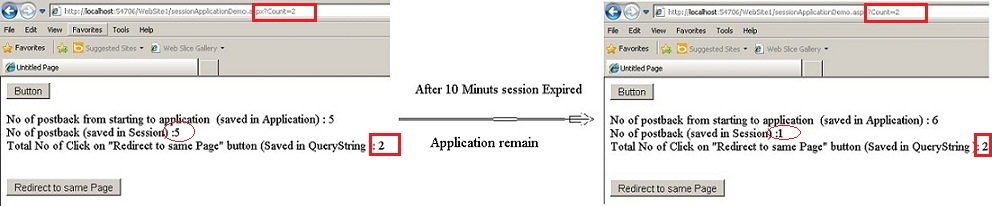
Session Events in ASP.NET
To manage a session, ASP.NET provides two events:session_start and
session_end that is written in a special file called Global.asax in
the root directory of the project.Session_Start: The
Session_start event is raised every time
a new user makes a request without a session ID, i.e., new browser accesses the application, then
a session_start event raised. Let's see the Global.asax file. void Session_Start(object sender, EventArgs e)
{
Session["Count"] = 0; // Code that runs when a new session is started
}
Session_End: The Session_End event is raised when session
ends either because of a time out expiry or explicitly by using Session.Abandon().
The Session_End event is raised only in the case of In proc mode not in the state server and
SQL Server modes.There are four session storage mechanisms provided by ASP.NET:
- In Proc mode
- State Server mode
- SQL Server mode
- Custom mode
<configuration>
 <sessionstate mode="InProc" cookieless="false" timeout="10"
    stateConnectionString="tcpip=127.0.0.1:80808"
    sqlConnectionString="Data Source=.\SqlDataSource;User ID=userid;Password=password"/>
</configuration>
In State Server mode: This mode could store session in the web server but out of
the application pool. But usually if this mode is used there will
be a separate server for storing sessions, i.e., stateServer. The benefit is that when IIS restarts the session is available.
It stores session in a separate
Windows service. For State server session mode, we have to configure it explicitly in the web config file and start the aspnet_state service. <configuration><sessionstate mode="stateserver" cookieless="false"
timeout="10" stateConnectionString="tcpip=127.0.0.1:42424"
sqlConnectionString="Data Source=.\SqlDataSource;User ID=userid;Password=password"/> </configuration>
In SQL Server mode: Session is stored in a SQL Server database.
This kind of session mode is also separate from IIS, i.e., session
is available even after restarting the IIS server. This mode is highly secure and reliable but also has a disadvantage that
there is overhead from serialization
and deserialization of session data. This mode should be used when reliability is more important than performance. <configuration>
<sessionstate mode="sqlserver" cookieless="false" timeout="10"
stateConnectionString="tcpip=127.0.0.1:4 2424"
sqlConnectionString="Data Source=.\SqlDataSource;User ID=userid;Password=password"/>
</configuration>
Custom Session mode: Generally we should prefer in
proc state server mode or
SQL Server mode but if you need to store session data using other
than these techniques then ASP.NET provides a custom session mode. This
way we have to maintain everything customized even generating session
ID, data store, and also security.| Attributes | Description |
Cookieless true/false | Indicates that the session is used with or without cookie. cookieless set to true indicates sessions without cookies
is used and cookieless set to false indicates sessions with cookies is used. cookieless set to false is the default set. |
timeout | Indicates the session will abound if it is idle before session is abounded explicitly (the default time is 20 min). |
StateConnectionString | Indicates the session state is stored on the remote computer (server).
This attribute is required when session mode
is StateServer
|
SqlConnectionString | Indicates the session state is stored in the database.
This attribute
is required when session mode is SqlServer. |
2. Application
Application state is a server side state management technique. The date stored in application state is common for all users of that particular ASP.NET application and can be accessed anywhere in the application. It is also called application level state management. Data stored in the application should be of small size.How to get and set a value in the application object:
Application["Count"] = Convert.ToInt32(Application["Count"]) + 1; //Set Value to The Application Object
Label1.Text = Application["Count"].ToString(); //Get Value from the Application Object
Application events in ASP.NET
There are three types of events in ASP.NET. Application event is written in a special file called Global.asax. This file is not created by default, it is created explicitly by the developer in the root directory. An application can create more than one Global.asax file but only the root one is read by ASP.NET.Application_start: The Application_Start event is raised when an app domain starts.
When the first request is raised to an application then the Application_Start
event is raised. Let's see the Global.asax file.void Application_Start(object sender, EventArgs e)
{
Application["Count"] = 0;
}
Application_Error: It is raised when an unhandled exception occurs,
and we can manage the exception in this event.Application_End: The Application_End event is raised just before an application domain ends because of any reason,
may IIS server restarting or making some
changes in an application cycle. So we have talked about various types of state management techniques in this article. I have tried to touch several topics in this article but the main intention for this article was to get the user familiar with the various state management techniques that exist in ASP.NET. The details for all these techniques will make a complete article by itself which I will try to post in future.


